

Announcement
This page is also available in Deutsch, Español, Français, Italiano, 日本語, and Português.
See what your Databricks jobs ran on, plus dashboard blocks with their own date ranges
New cluster and node details on the Databricks job page and dashboard blocks that keep their own date range.
Shipped by
See what your Databricks jobs ran on
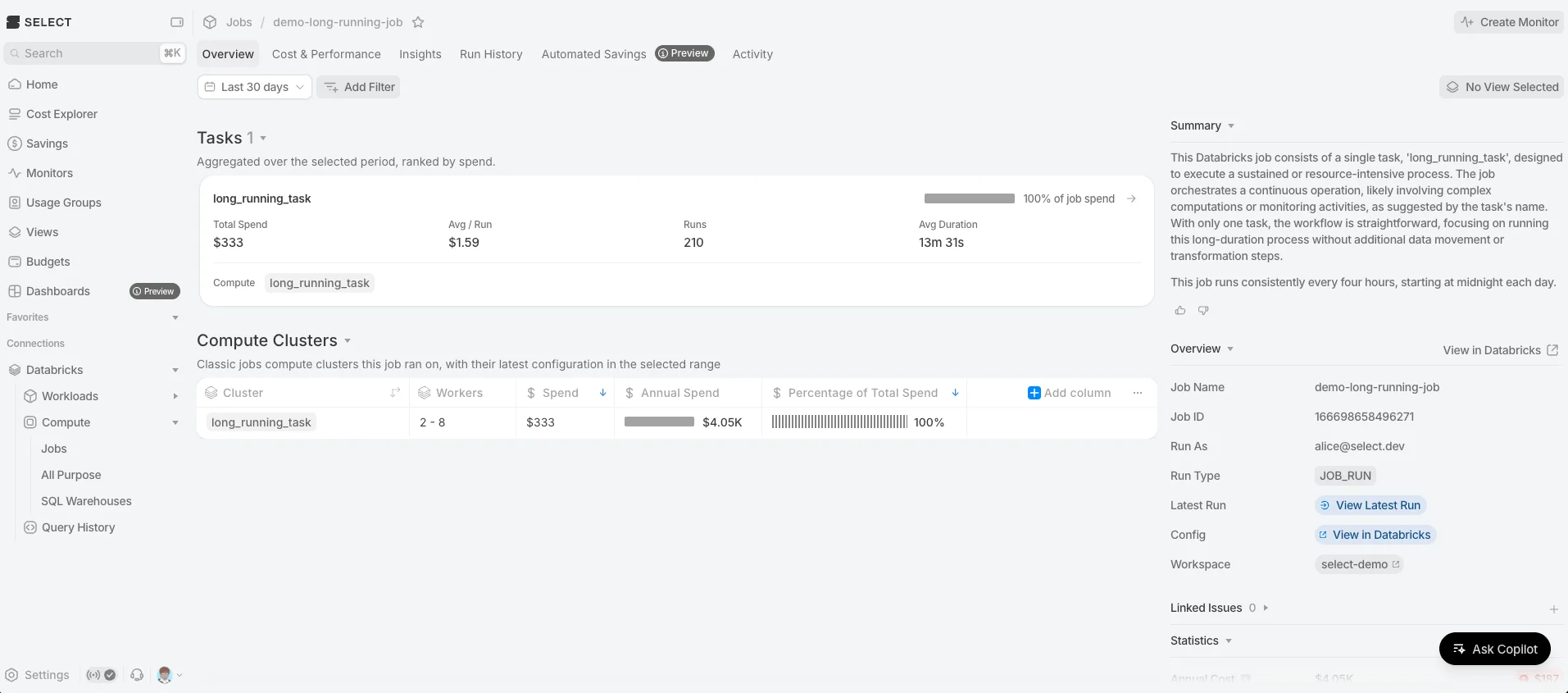
The Databricks job page told you what a job cost. It didn't tell you what it ran on, so "is this job oversized?" meant a trip to the Databricks console.
The Overview tab on the job details page now covers both, with two new sections:
- Tasks gives each task its own card: total spend, share of the job's spend, average cost per run, run count, average duration, and the compute it ran on.
- Jobs Compute lists every cluster definition the job used: node types, cores, memory, min and max workers, runtime and pools. Each sits next to the spend it produced and its share of the job's total.
Page filters apply to both, so narrowing by usage group, tag or cluster narrows the spend with it.
Dashboard blocks that keep their own dates
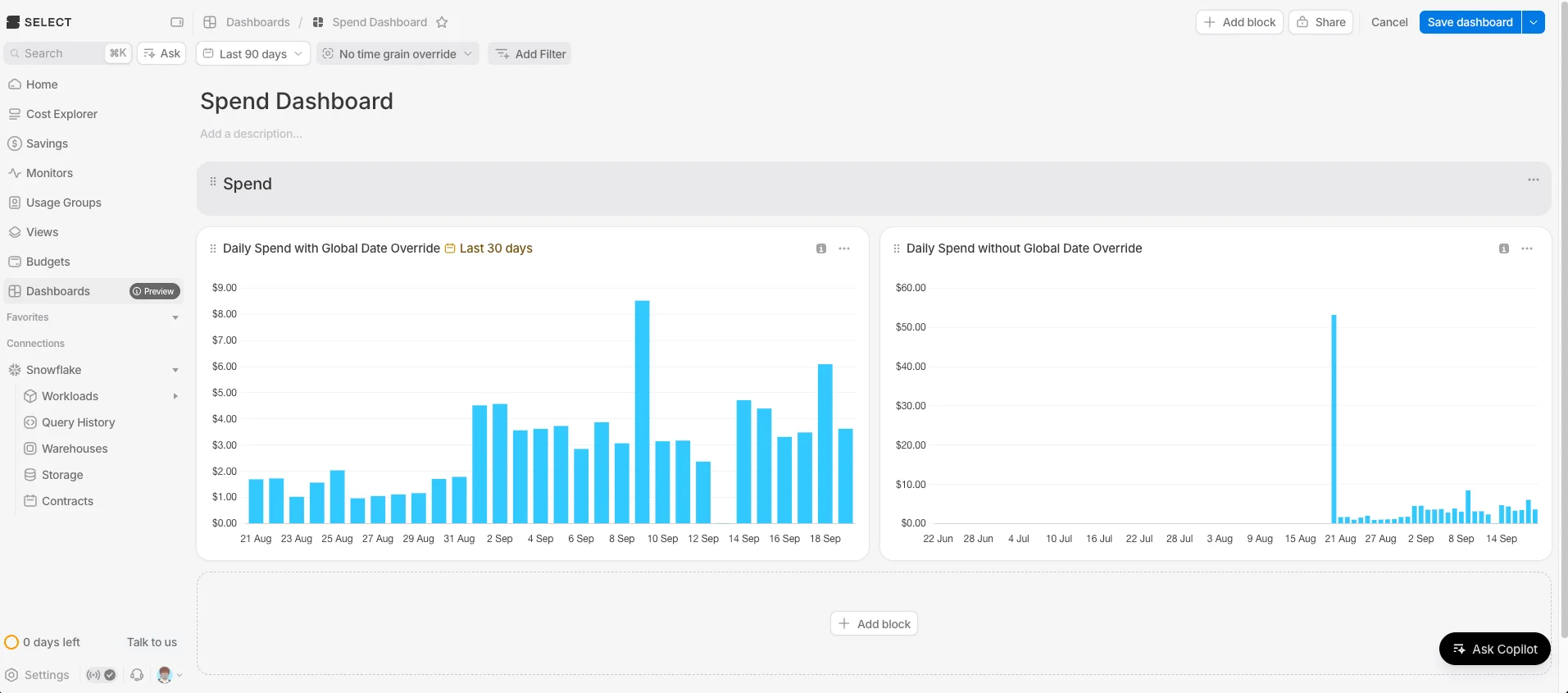
A dashboard-wide date range is handy until one block needs a different one. A 12-month trend next to this month's numbers used to mean two dashboards.
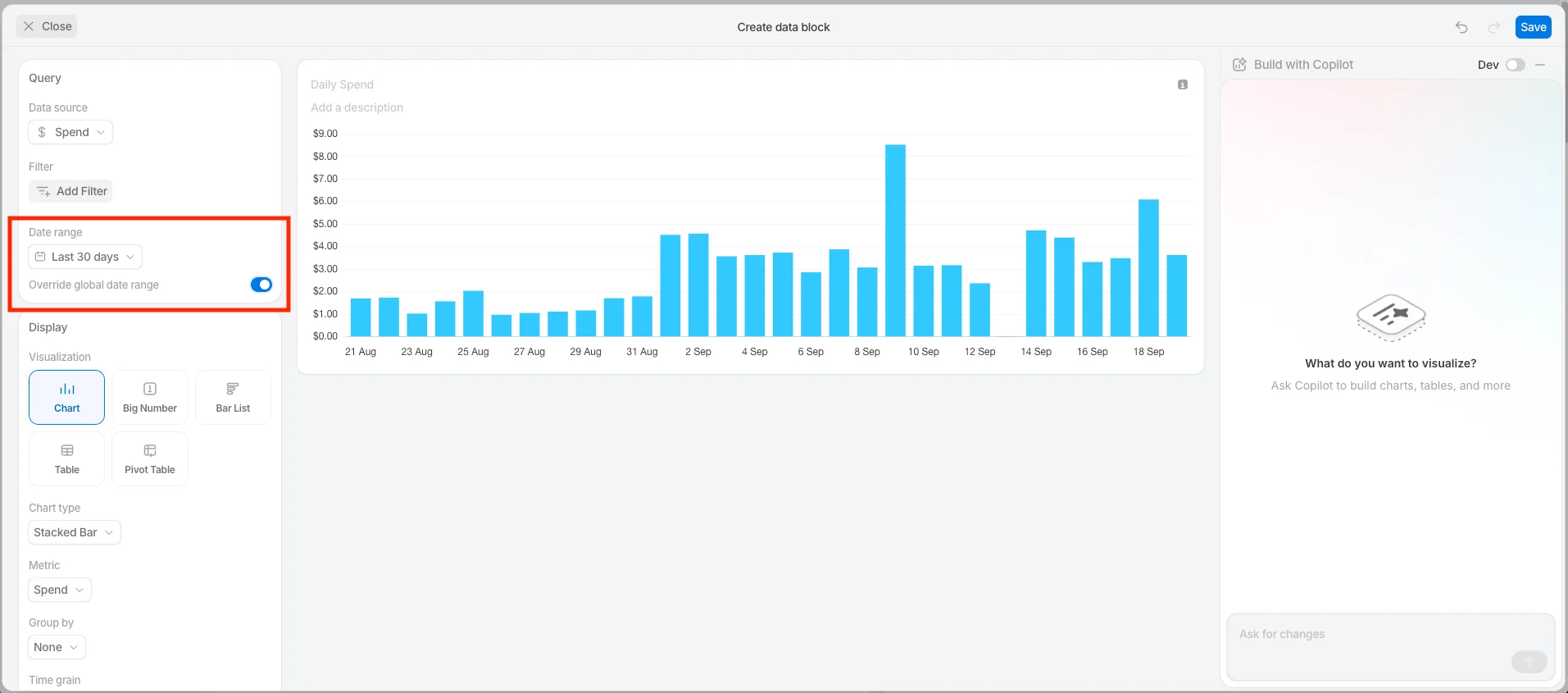
Blocks can now override the dashboard's date range and time grain. In the dashboard block editor, turn on Override global date range or Override global time grain. On the dashboard, a block using its own range shows it in the header with a calendar icon, so nobody mistakes it for the dashboard's range.
We also added Last quarter and Last year to the date range shortcuts.
If you run Databricks jobs on SELECT, take a look at the new Overview tab and tell us what else you'd want to see there.