SELECT Copilot is an AI assistant that helps you understand and optimize your usage across your data platform. It can investigate cost spikes, analyze individual queries, and recommend optimizations using the same data you see in SELECT.
Here are some of the key features
- Investigate cost spikes and spend changes granularly
- Analyze any query end-to-end — what it does, why it's slow, what it costs, and how to fix it.
- Talk to Copilot from inside SELECT, from Slack, or from any MCP-compatible AI client.
- Search SELECT's documentation directly through Copilot when you need a how-to.
Where to find Copilot
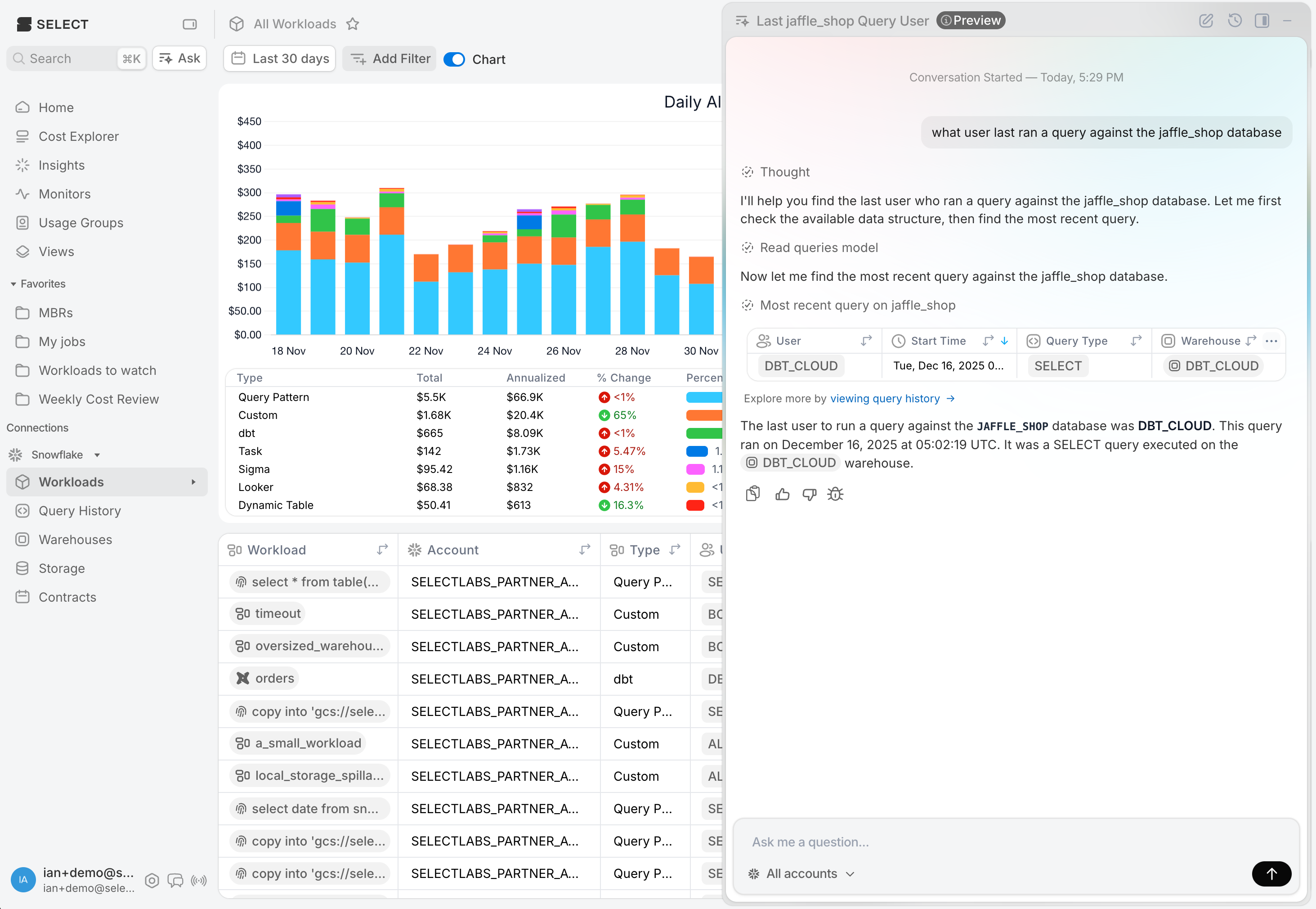
Inside the SELECT app, you can launch Copilot in two ways:
- Ask Copilot bubble — the floating chat bubble in the corner of every page. Open it from anywhere to start a new conversation.
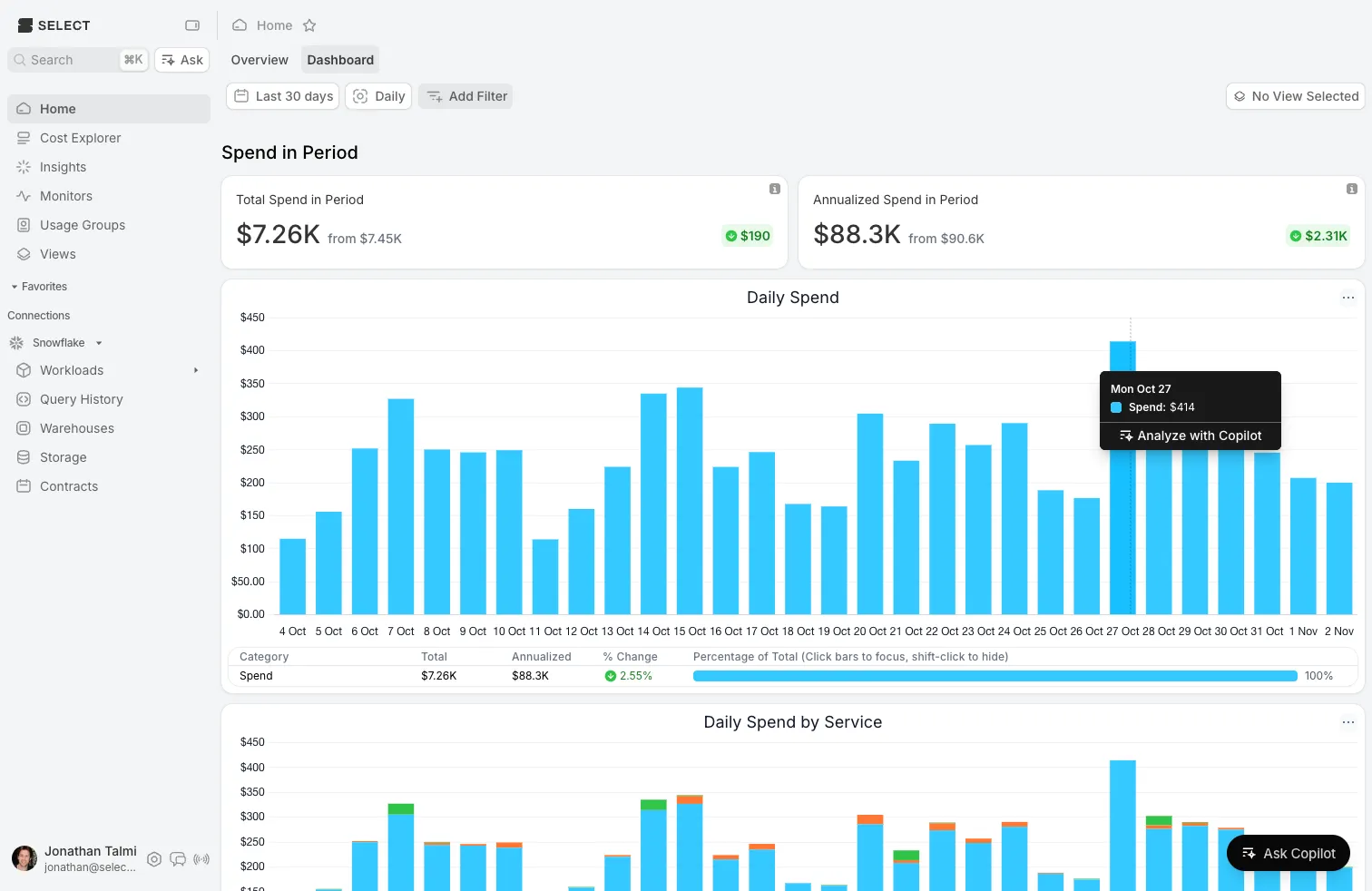
- Analyze with Copilot — click any chart in SELECT to send its data and context straight to Copilot. This works on time-series, breakdowns, and stacked or multi-series charts.
Cost and performance investigations
Ask Copilot questions about your usage. For example:
- "Why did our spend spike yesterday?"
- "Which workload drove the cost increase this week?"
- "What changed in our costs month-over-month?"
- "Show me the most expensive queries on this warehouse over the last 24 hours."
Query analysis
Paste a query ID, or ask Copilot to find one for you, and it'll tell you:
- What the query does. A plain-English summary so you can quickly understand unfamiliar SQL without reading hundreds of lines.
- Why it's slow. Performance bottlenecks like spillage, exploding joins, or full column scans, with an explanation of what's happening.
- What it costs. Per-execution cost plus annualized cost projections at hourly, daily, and weekly run rates.
- How to fix it. Actionable recommendations from SELECT's query-level insights, sorted by effort so you know where to start.
Copilot in Slack
Tag @SELECT in any Slack channel with a question to start a chat. Copilot can read the thread it's tagged in, but not the rest of the channel. You can pick up a Slack conversation in the SELECT app at any time.
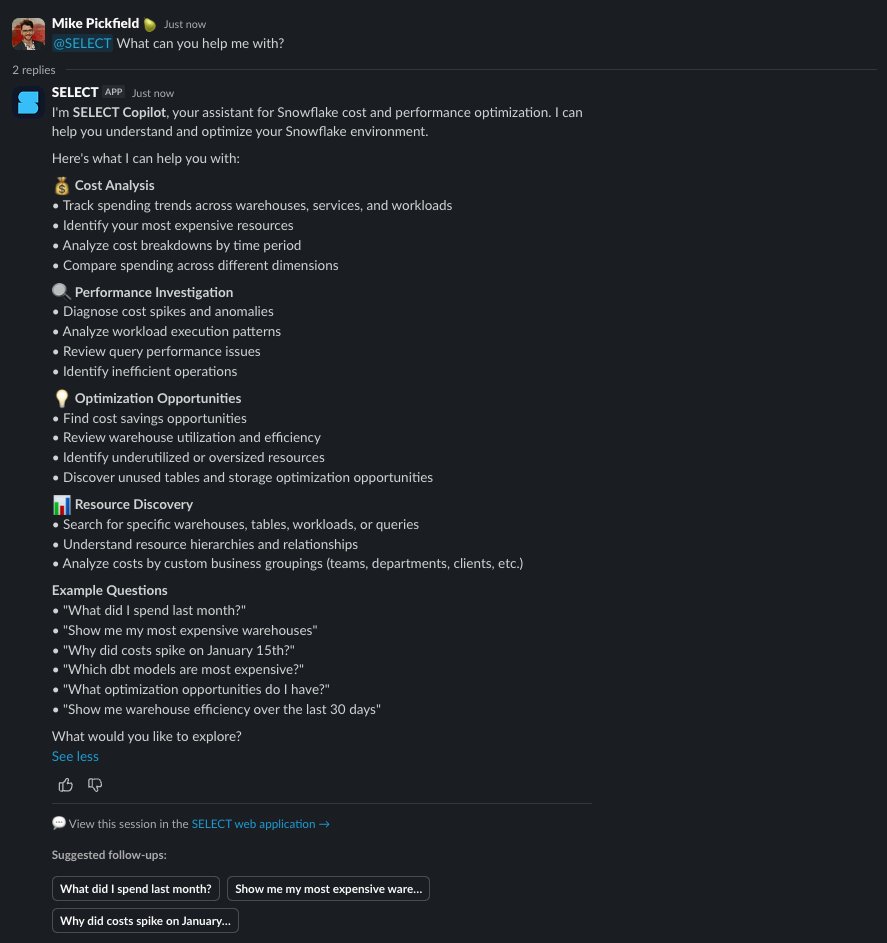
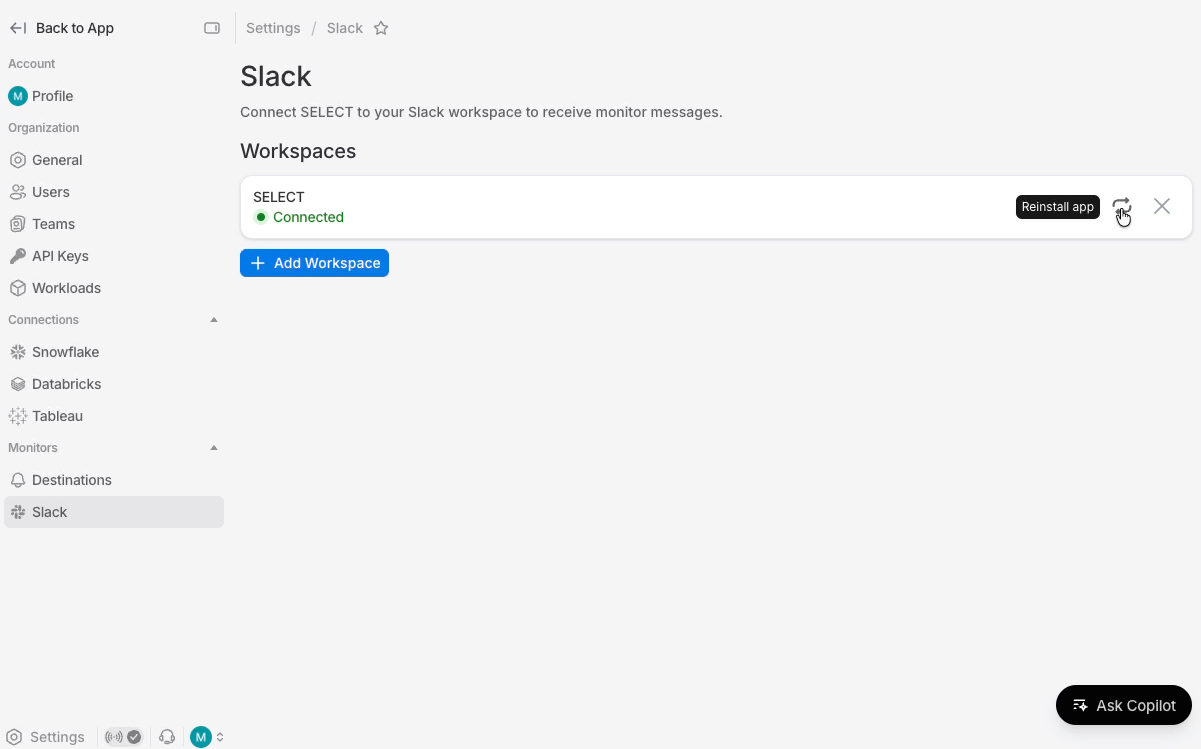
To enable Copilot in Slack, install (or re-install) the SELECT Slack app from select.dev/app/settings/slack.
Copilot via MCP
You can also talk to Copilot from any MCP-compatible AI client — Claude Code, Cursor, Codex, and more. See the MCP Server documentation for setup instructions.
Permissions and data access
- You'll only see data you have permission to view in SELECT.
- Copilot can read your data, but can't change anything in SELECT or your data platform.
- In Slack, Copilot can only see threads it has been tagged in, not the full channel history.
Tips for getting good answers
- Start broad, then narrow. Ask "why did spend go up last week?" before drilling into a specific warehouse or workload — Copilot will guide the investigation.
- Use Analyze with Copilot. Clicking a chart sends rich context to Copilot — the time range, dimensions, and filters — so you don't have to describe what you're looking at.
- Paste query IDs directly. If you already have a query ID from an alert, monitor, or your own investigation, paste it in and Copilot will analyze it immediately.
- Continue across surfaces. A conversation started in Slack can be picked up in the SELECT app, and vice versa.