Feature Overview
SELECT's Jira integration is here. Connect your Jira workspace to SELECT and seamlessly link tickets to track and resolve cost optimization issues — all without leaving your workflow.
Linking a Jira Workspace
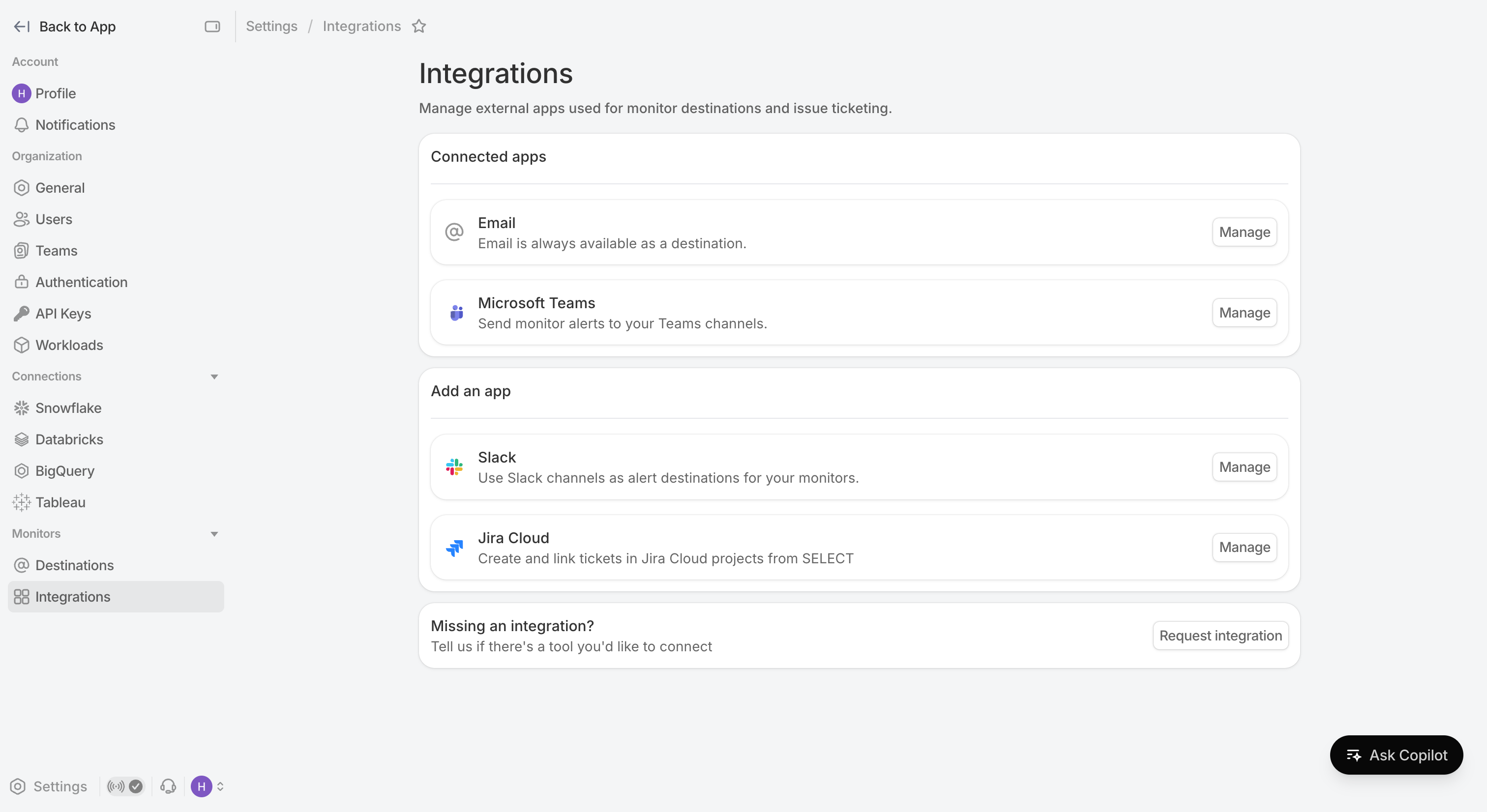
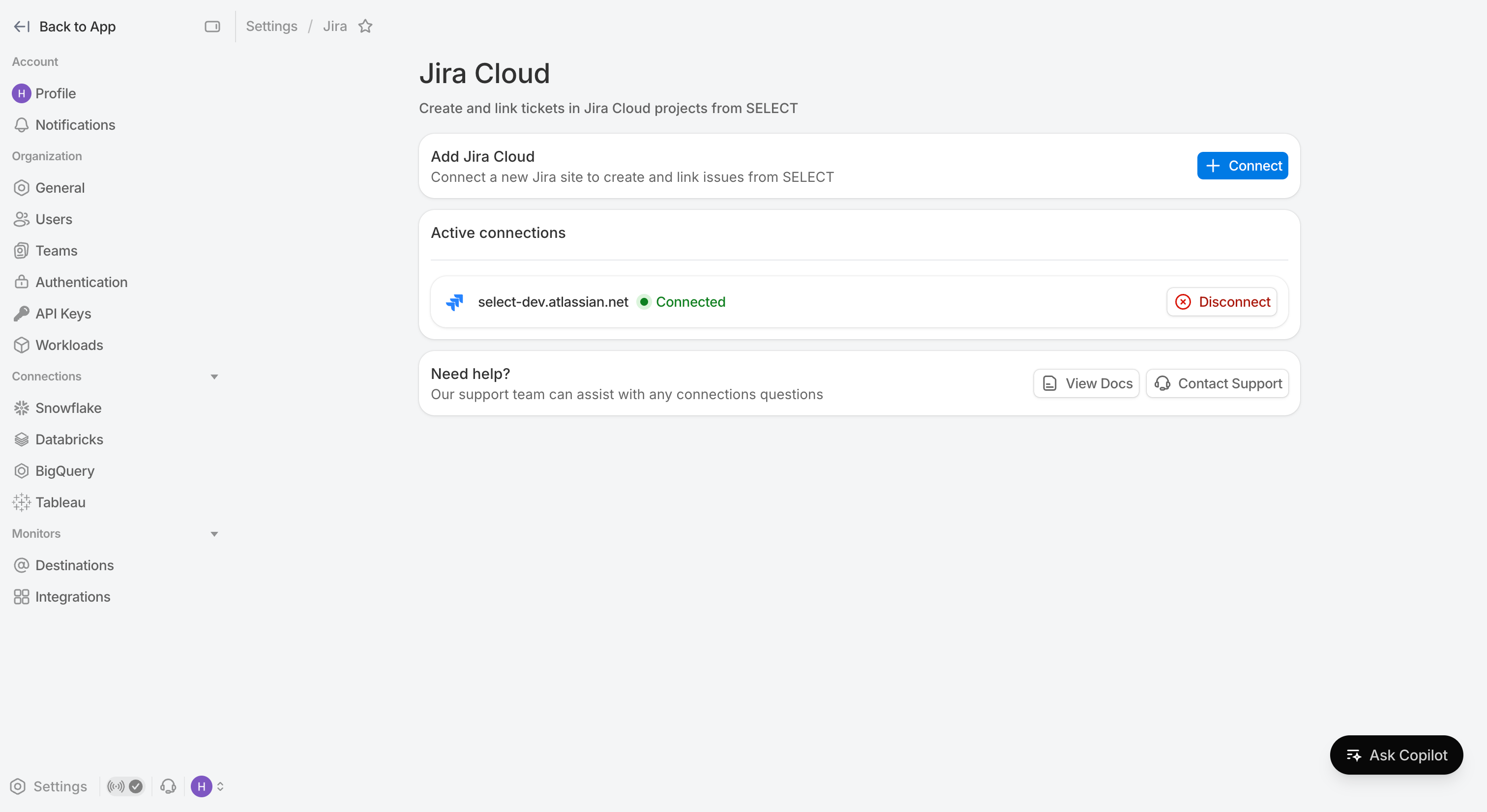
Navigate over to Settings → Integrations . Here is where you can link external applications to SELECT. Click on Jira Cloud to manage the list of active connections.
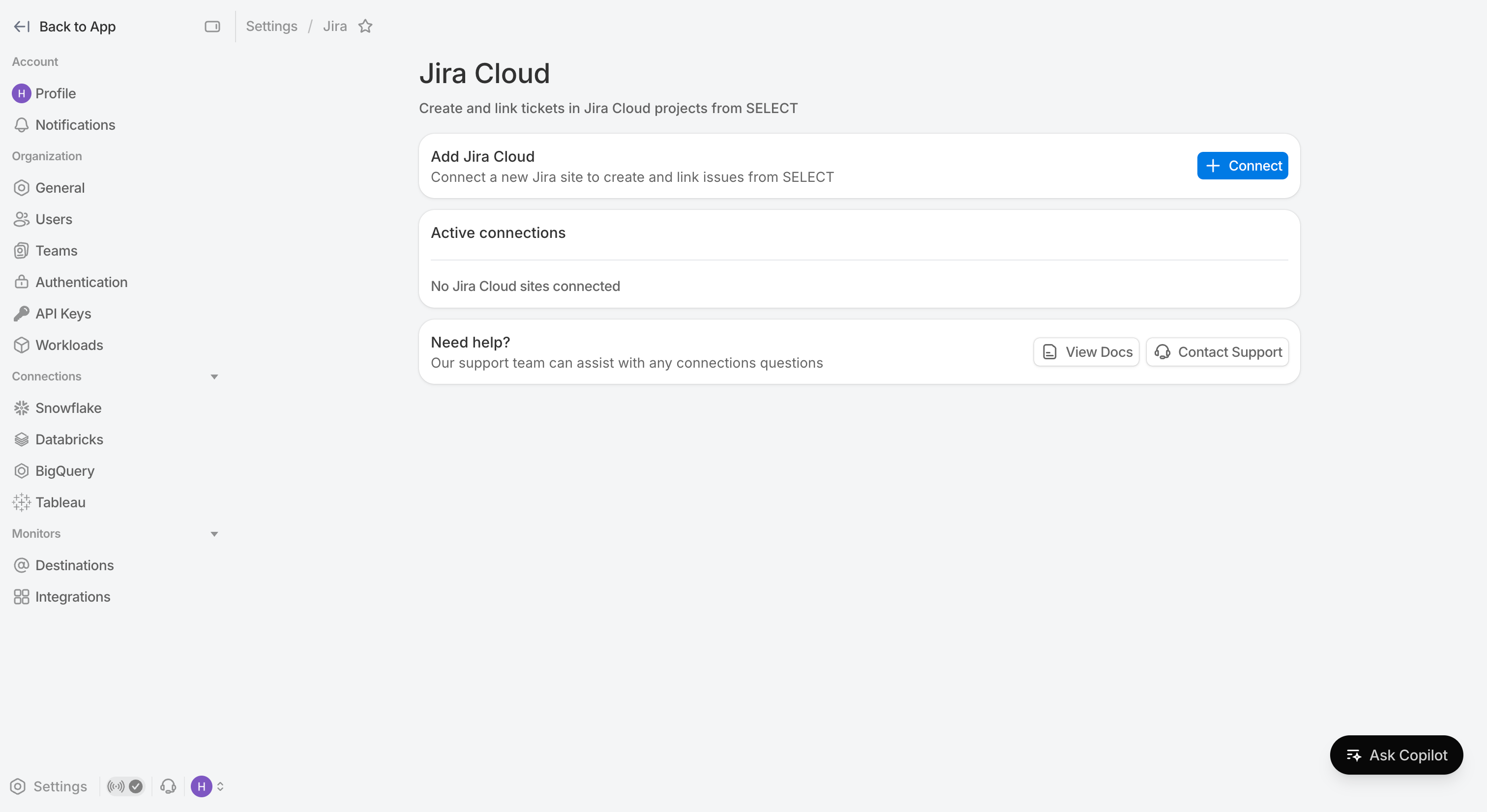
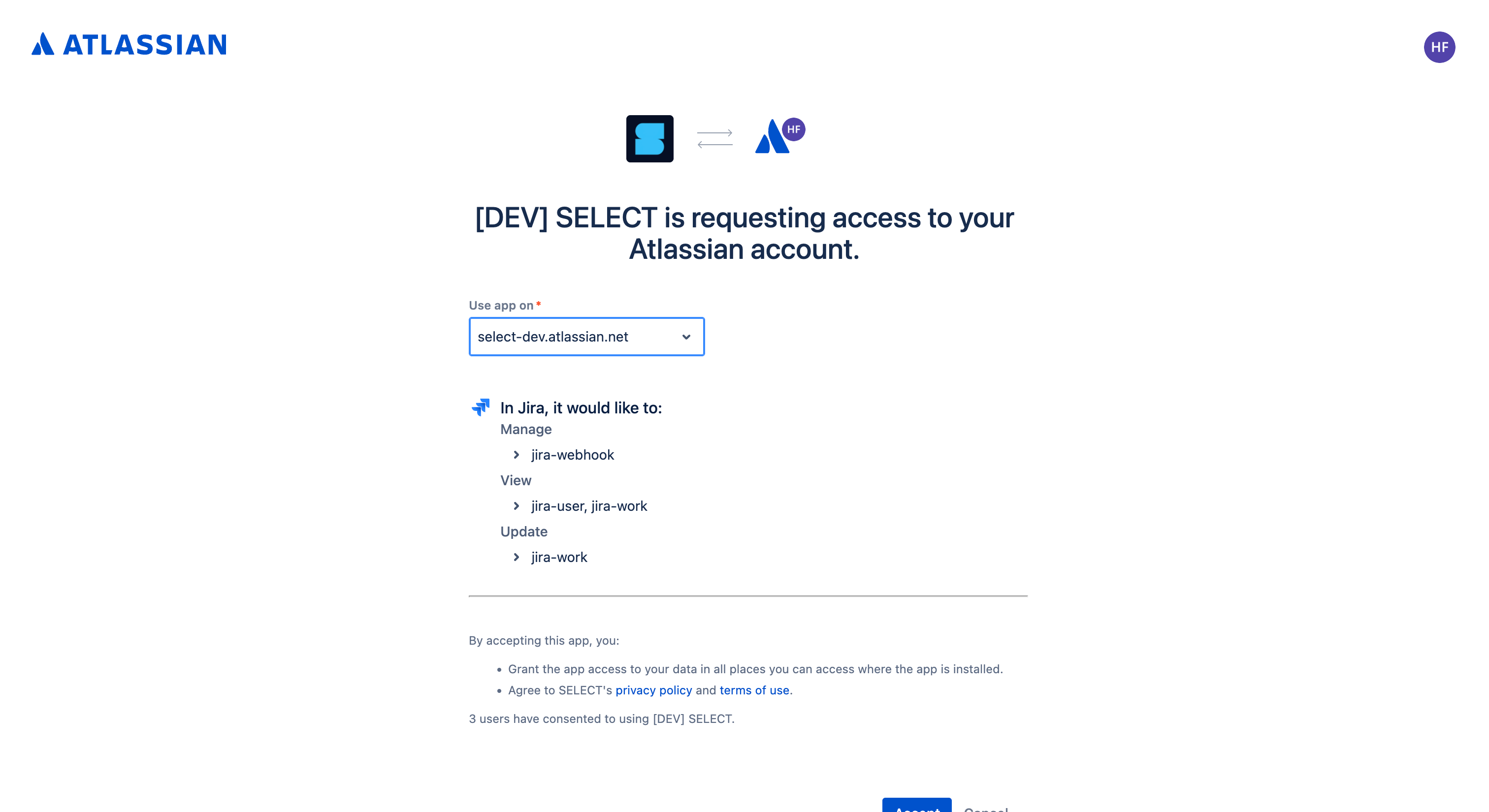
Clicking on connect will navigate you to Jira where you can select which Jira Site to connect with. Once successful, you will be navigated back to SELECT with a new active connection.
Creating a ticket
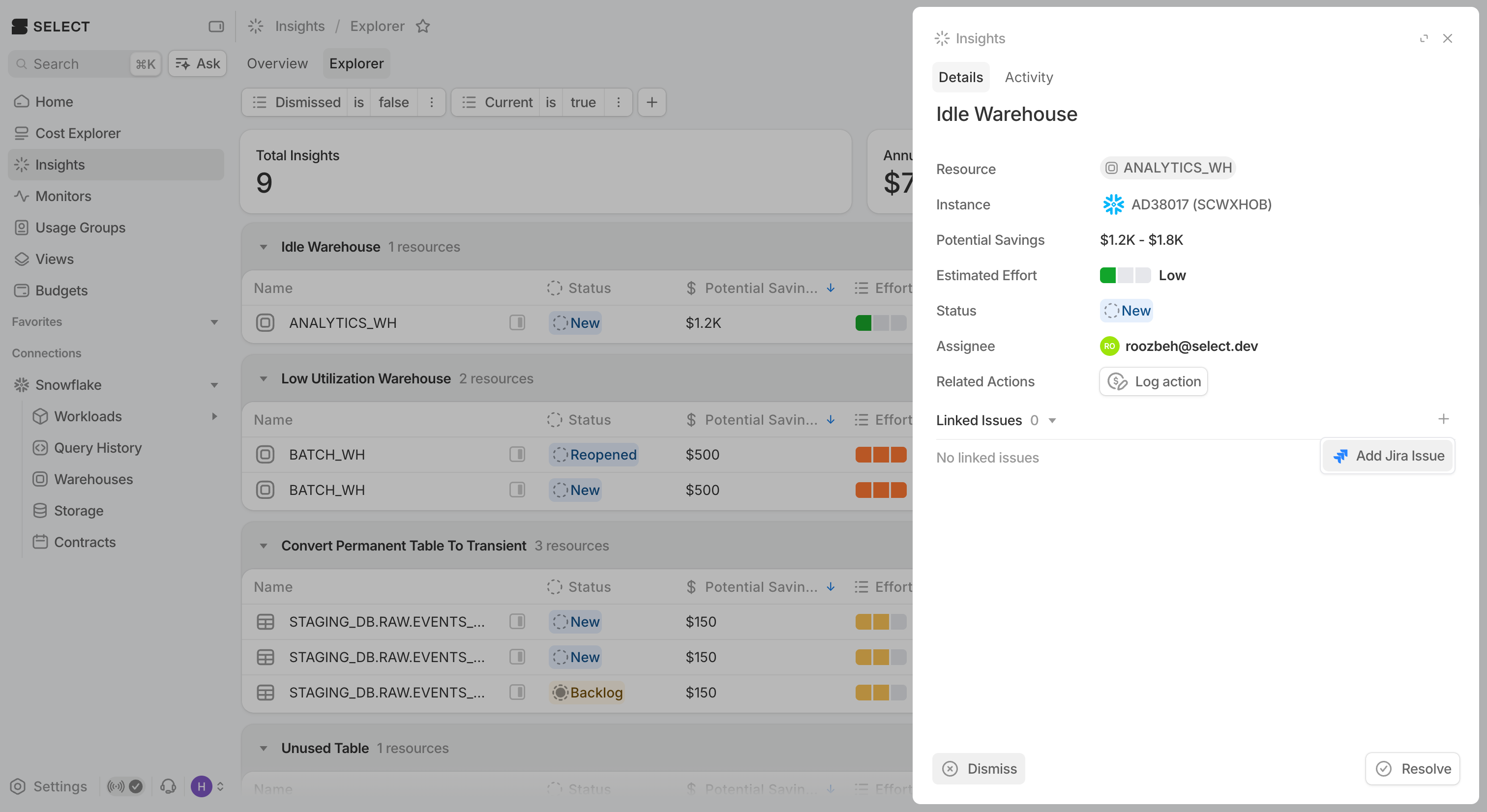
To create a new ticket, navigate to any page from the sidebar (i.e. Budgets, Monitors, Insights, etc). Clicking onto the sidebar view, you will find the “Add a Linked Issue” button.
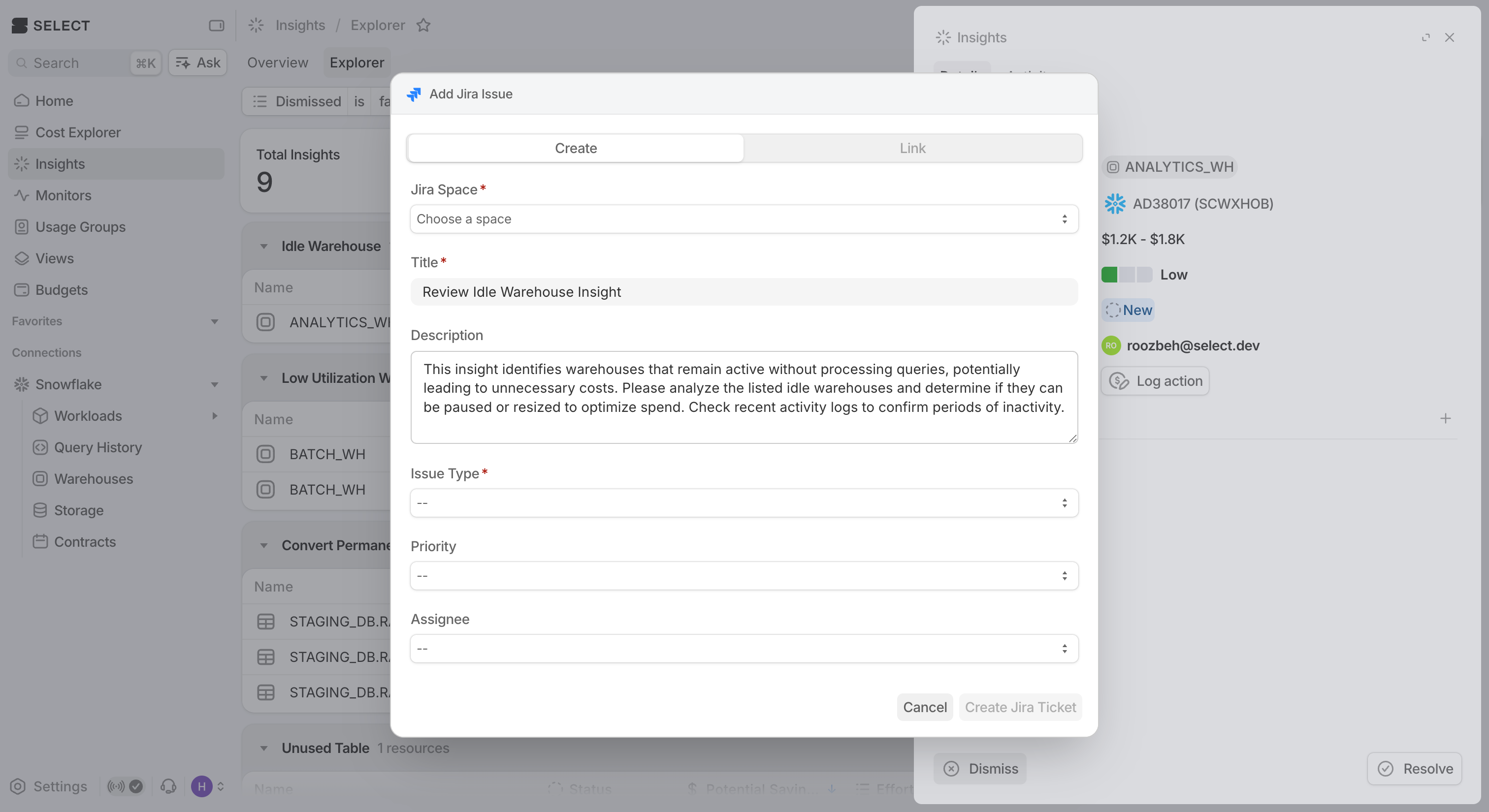
The configuration form guides you through how to create a ticket, what fields to provide, etc. By default, the title and description come pre-generated based on the type, assisting you in making the best ticket.
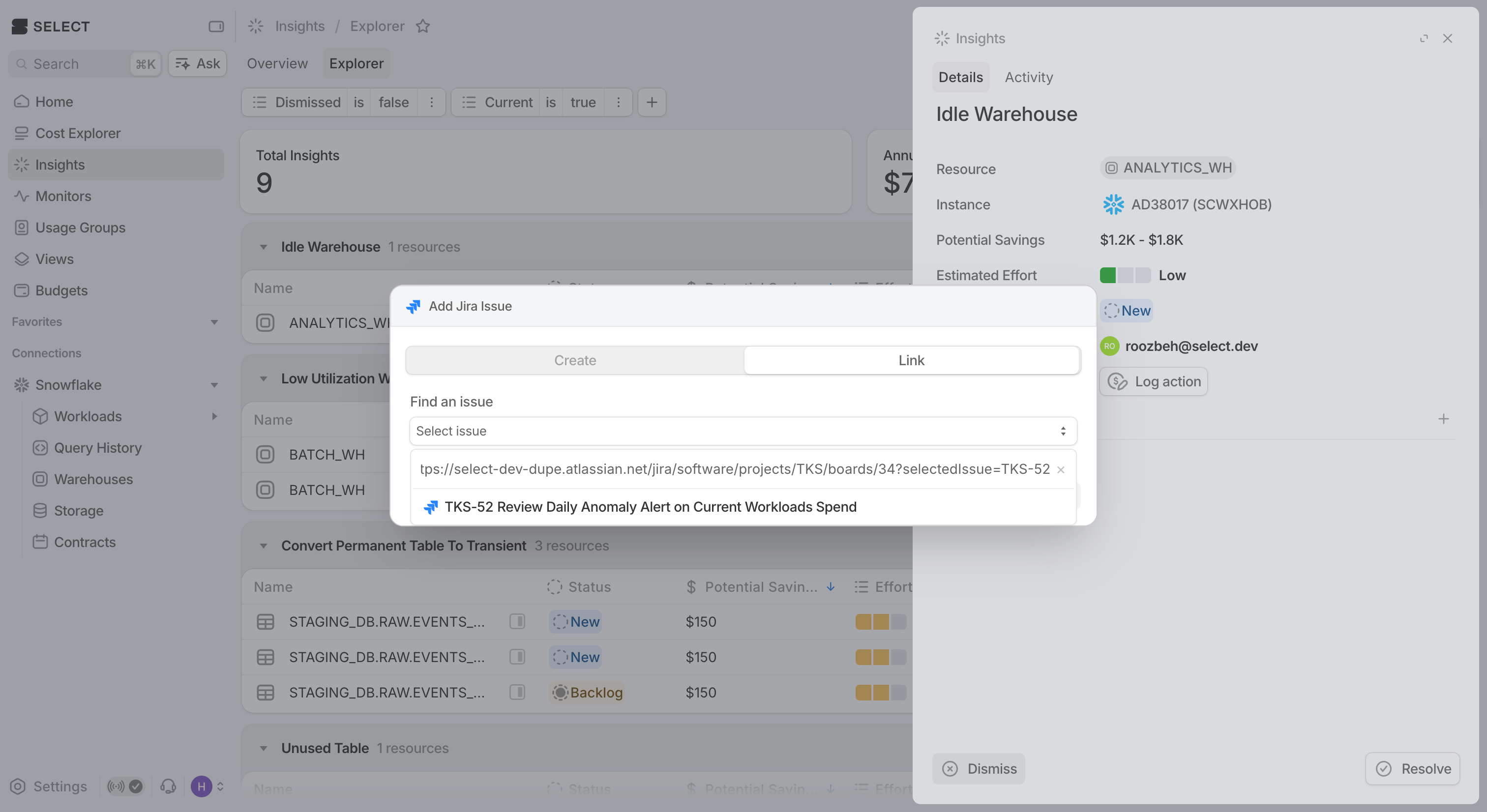
There is also an option to link pre-existing tickets from Jira. Simply navigate over to Jira and copy any URL of an existing ticket and paste that back in SELECT to seamlessly link the ticket.
Viewing ticket details
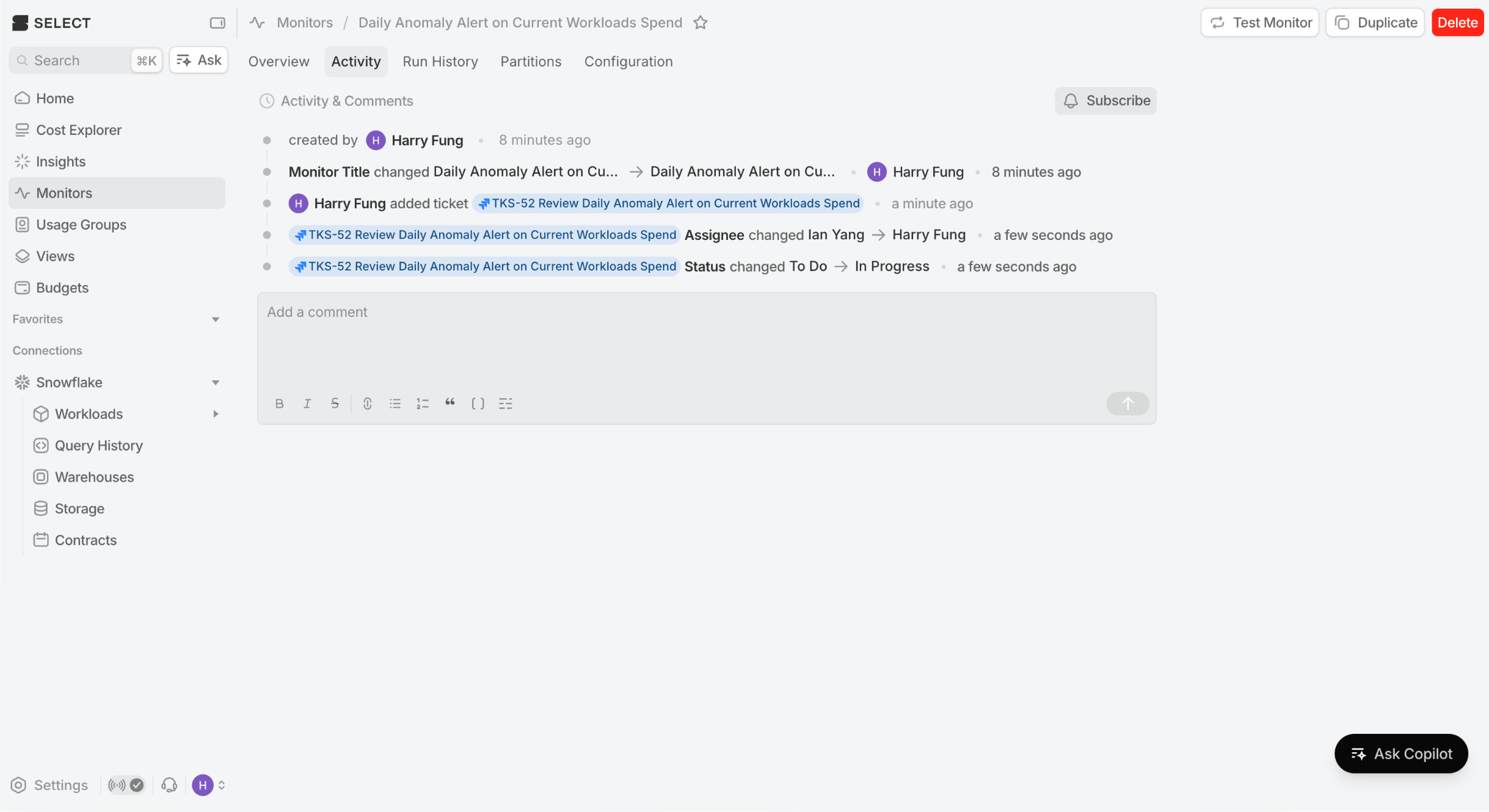
Switching over to the activity feed, here is where ticket information will be displayed. Details such as assignee, status, name change will be shown.
Upcoming Improvements
- Comment syncing
- Auto resolving an insight when a Jira Ticket is closed