Actions & Savings
Actions let you record every cost-saving change you make and measure its impact on your bill over time. They are the system of record for optimization work in SELECT — similar to tickets in Linear or Jira, but tied directly to your spend, so you can prove impact instead of estimating it.
Actions come from two sources: ones you log by hand, and ones SELECT logs automatically for its automated-savings features. In most accounts the automated ones are the majority of what you'll see.
Where to find Actions
Actions live under the Savings section of the sidebar.
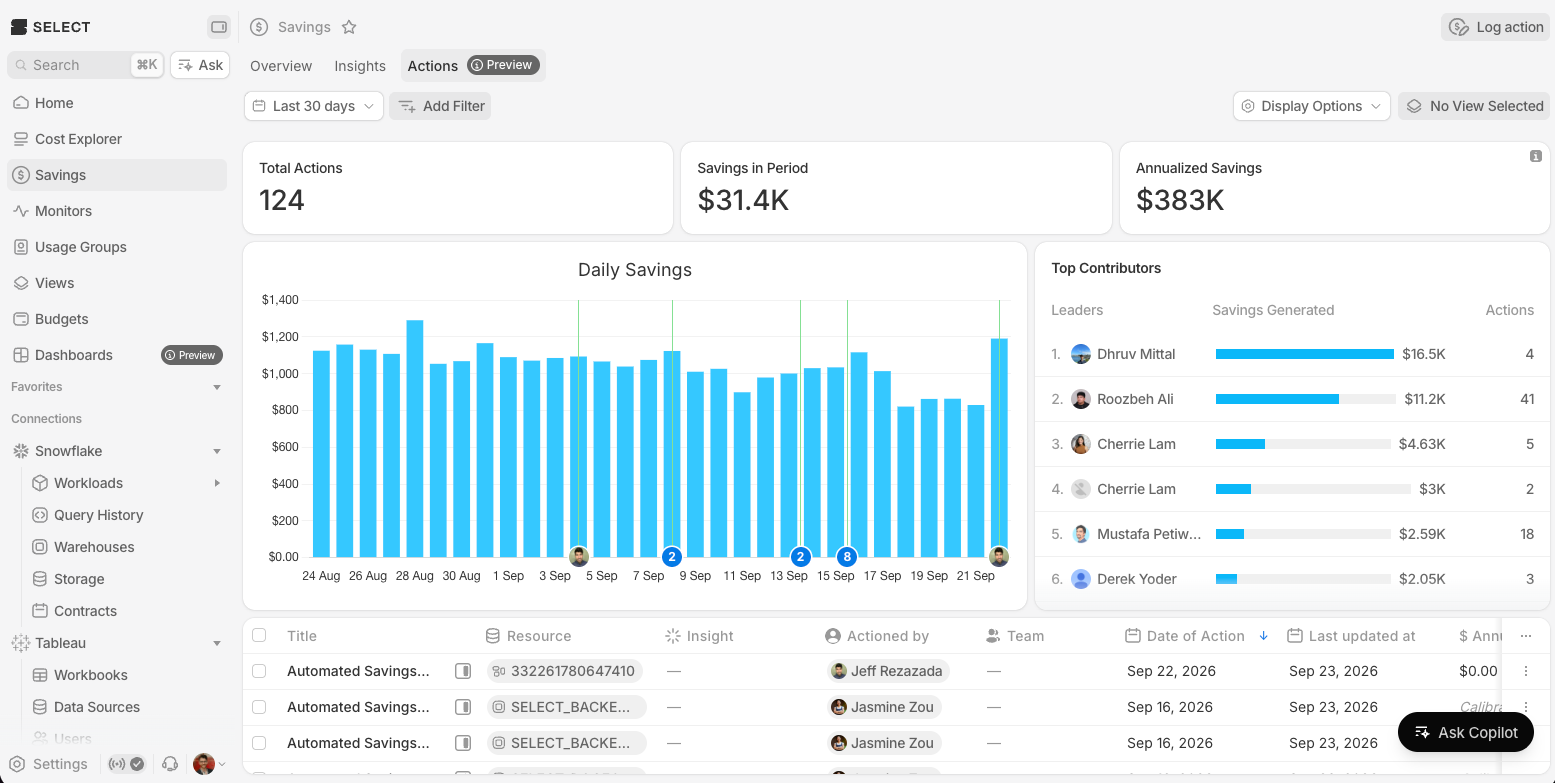
Savings has three tabs:
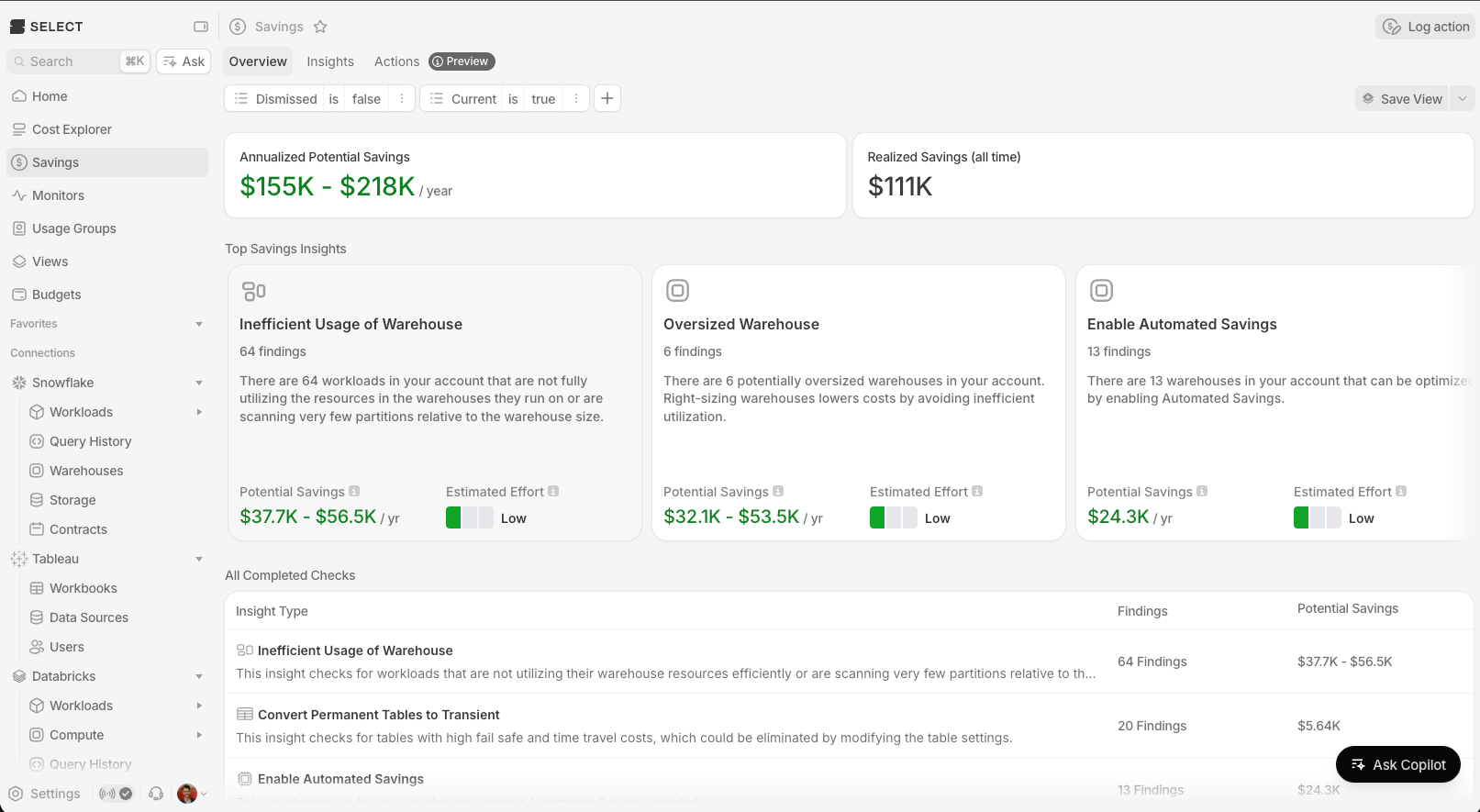
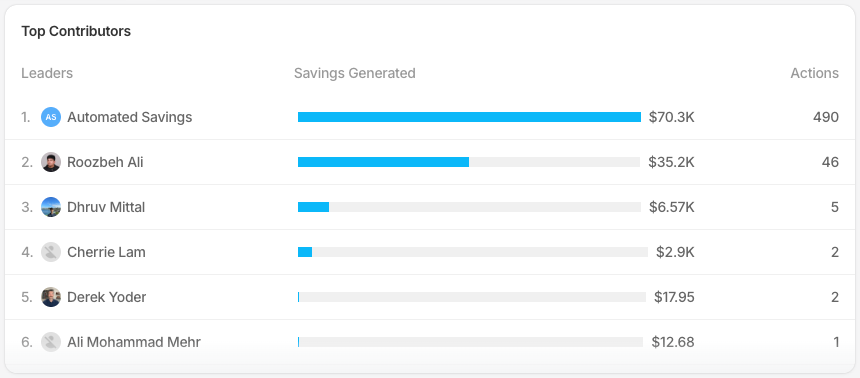
- Overview — a dashboard showing total realized savings, projected savings, and a leaderboard of who's logging the most actions.
- Actions — the full list of logged actions with filtering, grouping, and summary metrics.
- Insights — cost-optimization recommendations that you resolve by logging an action.
Actions also appear in a few other places:
- Insight detail drawers — each insight shows related actions and a quick Log Action button.
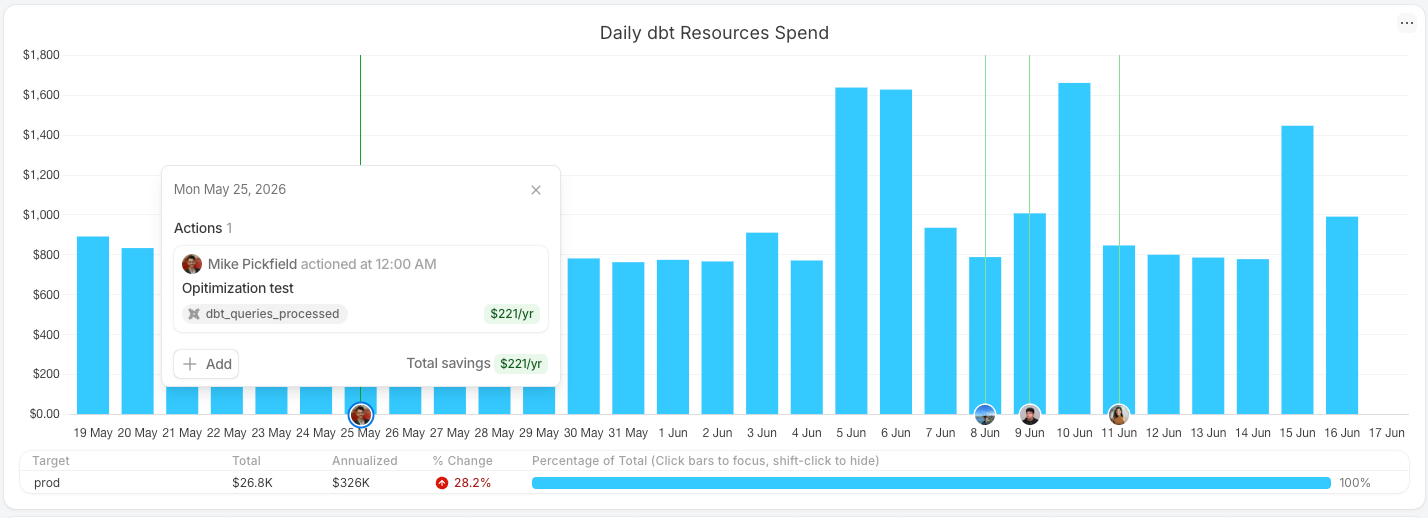
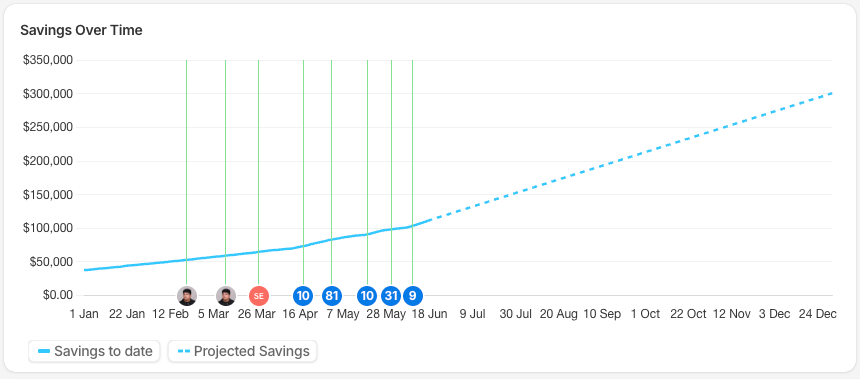
- Spend charts — top-level charts show actions for all resources as circles on the x-axis; resource-specific charts show just that resource's actions. By default a chart shows only the relevant action types, but you can adjust any chart through the chart menu (a simple show/hide on resource charts, or a multi-select of action types on top-level pages).
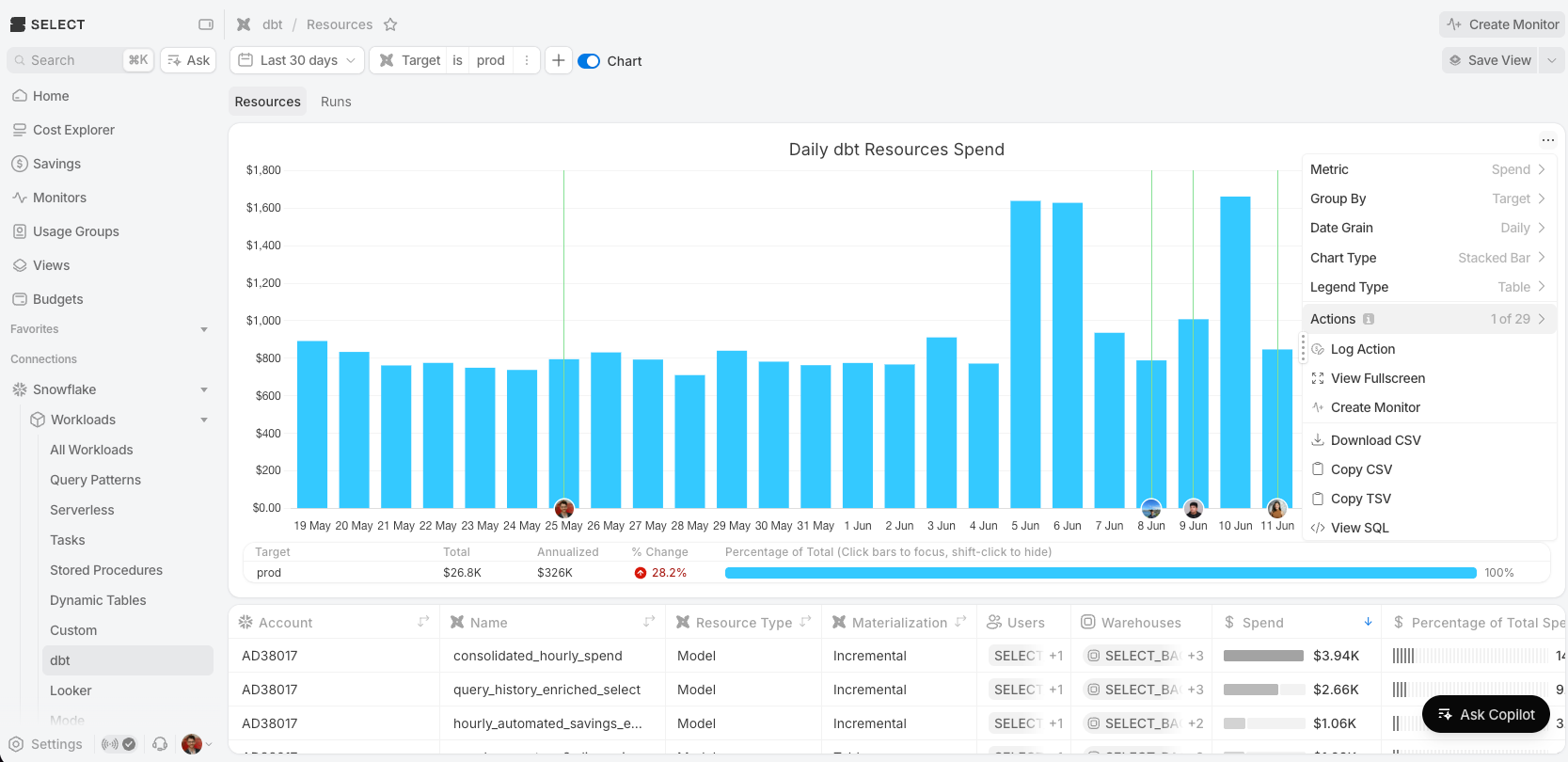
Hover over an action marker to open a panel. The panel lists the actions on that date and their combined annualized savings. This value is the per-action annualized savings (see Annualized savings), so the chart's date range does not change it. Click Add to log a new action with that resource and date already filled in.
Logging a new Action
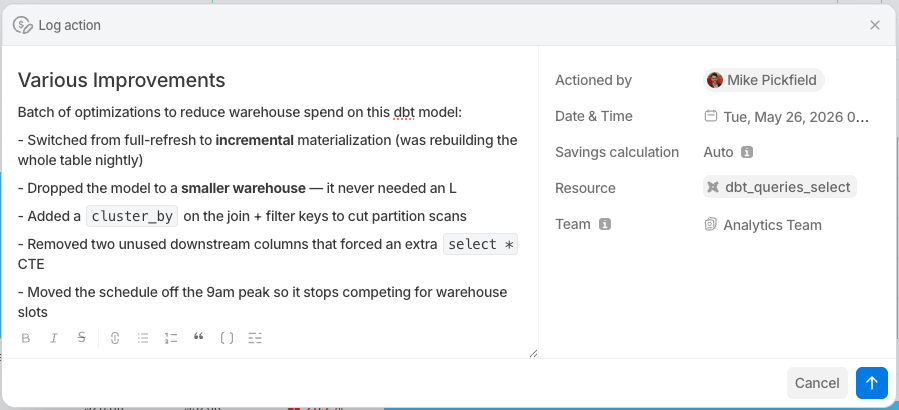
Click Log Action in the Actions tab header to open the creation modal. You can also click the chart to pin the tooltip and add an action for that day, which pre-fills the date.
Action fields
- Title — a short name for what you did (e.g. "Downsize ANALYTICS_WH to Medium").
- Scope — whether the action applies to a specific resource or globally (see below).
- Actioned by — the team member who took the action.
- Date of action — when the change took effect. SELECT uses this as the before/after boundary for measuring impact. Can't be in the future.
- End date (optional) — when the action stopped being in effect. Leave blank for an ongoing change; set it to bound a finished experiment (see Start and end dates below).
- Description (optional) — any additional context about the change. Supports Markdown.
- Savings type — how savings are tracked: Automated or Manual (see below).
- Savings amount (manual only) — your savings estimate, entered as either a flat dollars-per-day or a percentage of the resource's spend.
- Team (optional) — the team the action belongs to; controls who can see it. Required if you don't have org-level write permission.
Start and end dates
The date of action marks when the change took effect — the start of the action's effective period. The end date is optional and marks when it stopped.
Set an end date when you run an experiment and want a clear picture of what the change cost or saved during a fixed window. After an action ends, SELECT stops adding daily savings for it and keeps its realized total. The action's daily and annualized savings become $0. Leave the end date blank for changes that are still in effect.
Scope: Resource vs Global
Resource scope ties the action to a specific resource (warehouse, query pattern, storage, etc.). This is what enables automated savings — SELECT compares the resource's spend before and after the action date.
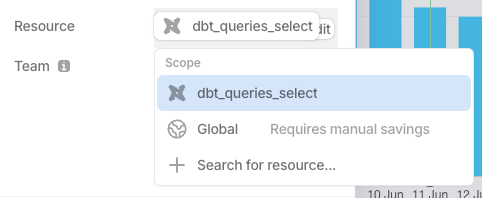
Global scope is for changes that affect overall spend but aren't tied to a single trackable resource — e.g. "Implemented org-wide query governance," sunsetting an untracked account, or renegotiating your contract. Because there's no single resource to measure against, global actions require manual savings: when you pick Global, the savings type switches to Manual and Automated is disabled, and you must enter a flat dollars-per-day amount (percentage savings aren't available for global actions).
Savings type: Automated vs Manual
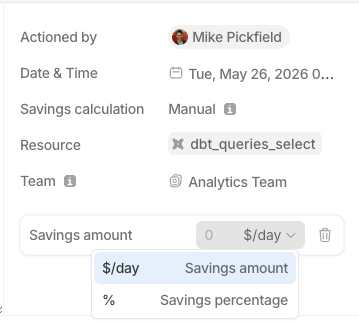
- Automated — SELECT compares your resource's average daily spend before and after the action date to estimate savings. Requires a resource-scoped action and about a week of post-action data before a result appears (see below). Default for resource-scoped actions.
- Manual — you enter the savings yourself, as either a flat dollars-per-day or a percentage of the resource's spend. Use this to override the automated estimate when you have a better number, or when the resource's usage is too irregular for the before/after comparison to be trustworthy.
Global-scope actions always use manual flat-dollar savings, since there's no specific resource to measure.
Who can see an action
Anyone with write permission can log an action against any resource. Visibility depends on team scoping:
- Scoped to a team — visible to members of that team, plus organization-wide viewers.
- Not attributed to a team — visible only to organization-wide viewers.
SELECT picks a default team for you in the UI, which you can change. Note that SELECT doesn't have a strict notion of teams owning resources, so team scoping is a manual choice rather than something inferred from the resource — pick the team that should see the action.
Automated savings actions
When automated savings is enabled on a Snowflake warehouse or Databricks resource, SELECT automatically logs an action whenever the automation makes a change, so savings from automation are tracked alongside the changes you log by hand. These auto-generated actions behave like any other and appear in the same lists and charts.
Who they're attributed to. Historical automated-savings actions were backfilled and are attributed to an automated-savings system user. Going forward, a new automated-savings action is attributed to the actual user who toggled the feature on.
A different savings methodology. Because SELECT operates these features, it doesn't rely on the before/after comparison alone. The automated-savings service reports the savings it actually achieved — and that report is often conservative and under-counts. So the savings shown for an automated-savings action can be a blend: a floor from what the service reports, combined with the before/after percentage when that's higher.
A practical consequence: an automated-savings action can still show savings even when the before/after comparison would land at 0% (e.g. because spend fell under the minimum-spend floor described below). The service's own conservative day-to-day estimate carries through instead of being zeroed out.
Savings Overview dashboard
The Overview tab gives a high-level view of your team's optimization impact.
Actions tab
The Actions tab shows all logged actions in a filterable table; each action can also be opened in a side pane.
Summary cards and Daily Savings chart
Three summary cards show at the top of the Actions tab:
- Total Actions — the number of actions that match your filters.
- Savings in Period — the total savings from the matching actions in the selected date range.
- Annualized Savings — Savings in Period, scaled to a full year. See Annualized savings below.
The Daily Savings chart shows one bar for each day. Each bar is the total savings from the matching actions on that day. Drag across the chart to zoom to a shorter date range.
The date range and the filters change the cards and the chart. They do not change the savings columns in the actions table.
Logged Actions Leaderboard
A ranked list of team members by the number of actions they logged and the savings from those actions in the selected date range.
Filtering. Use the inline filters above the table to narrow by title, resource, user, insight type, savings type, or date range.
Grouping. Use the Group by dropdown to organize actions (by savings type, resource type, team, and more).
Action details
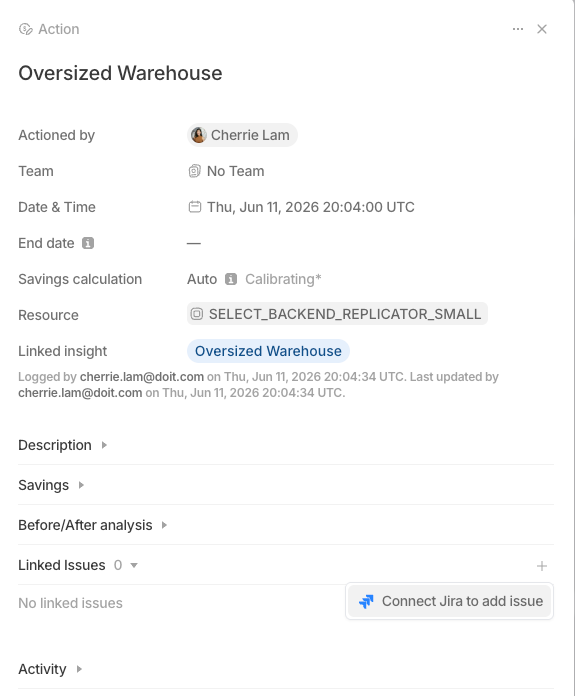
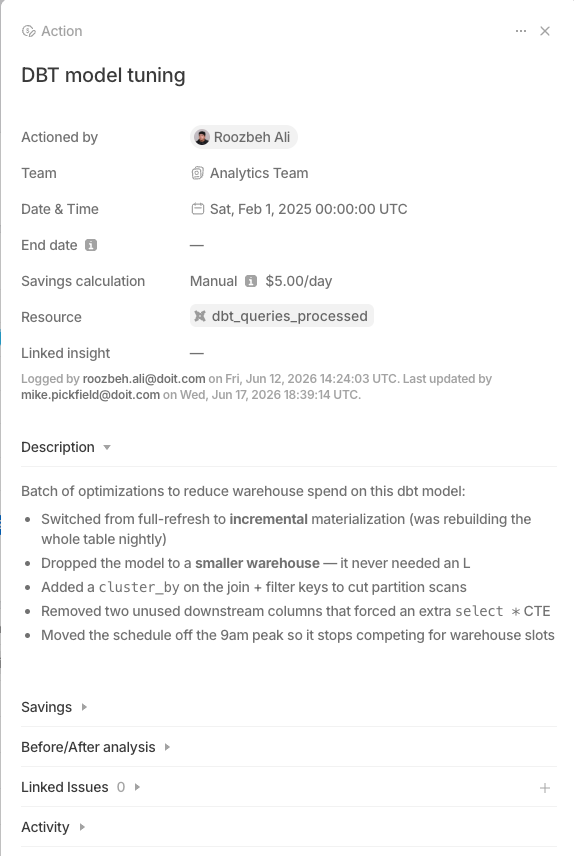
Click any action row to open the detail drawer on the right. The drawer shows the action's details, a breakdown of the savings calculation, any linked Jira issues (see Linking actions to Jira below), and an activity log of changes.
Editing & deleting actions
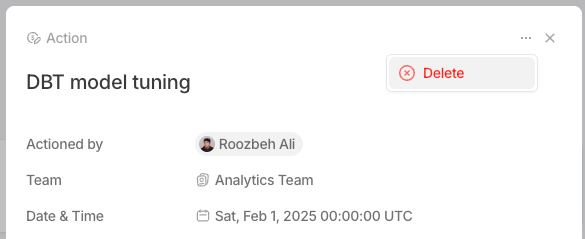
In the detail drawer, click any field to enter edit mode; changes save when you confirm. To delete, open the drawer menu (three dots) in the top-right and select Delete. A confirmation dialog appears — deletion can't be undone, and removes the action's savings from your aggregate numbers.
How savings are calculated
Automated savings
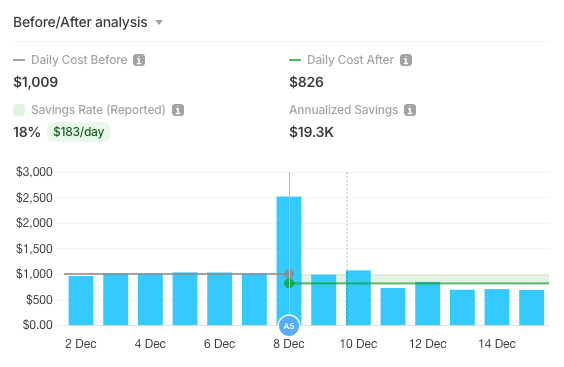
When you log a resource-scoped action with automated savings, SELECT compares the resource's average daily spend before the action to the average daily spend after. The difference is your daily savings.
- Before window: the 7 days before the action date.
- After window: the 7 days after the action date.
- The difference in average daily spend becomes the daily savings, expressed as a percentage of the before-period spend.
A few things to know about the method:
- The action day itself is excluded. Spend is day-level, so the action day holds partial/mixed before-and-after data that doesn't cleanly belong to either window.
- It needs about a week of post-action data. SELECT can't produce a result until the full 7-day after-window has elapsed — roughly 8 days after the action once nightly processing is included.
- It runs nightly. The calculation runs once per day, after SELECT pulls the latest spend from your account — so savings populate on the next daily refresh, not instantly.
- Minimum-spend floor. SELECT only trusts the comparison when there's at least $1/day of average spend in both windows. Below that, the automated rate defaults to 0% — too small to attribute reliably — and you can eyeball the impact from the before/after chart and switch to a manual figure if warranted.
- Multiple actions in the window. If more than one action was recorded for the resource within the comparison window, the breakdown includes a disclaimer, since their effects can't be cleanly separated.
⚠️ When to override. The before/after comparison assumes usage is roughly stable across the window, so it's sensitive to changes in usage patterns. If the actioned resource has seasonal or irregular usage, the automated number can misattribute normal variance to your change. When the chart looks distorted by usage swings rather than your change, switch to a manual percentage you can defend from the numbers you see.
Automated rates are also capped — generally 95%, and 50% for idle-time automations like smart suspend (which can only recapture idle time, not active query time). A computed rate above the cap usually signals a workload change rather than the action itself.
Manual savings
For manual savings you provide either a flat dollars-per-day amount or a percentage of the resource's spend. A flat amount annualizes simply as that amount × 365.
Annualized savings
SELECT shows annualized savings in two places on the Actions tab. Each place uses a different time window, so the two numbers usually do not match.
Annualized Savings card
The Annualized Savings card uses the same method as annualized cost and savings in other parts of SELECT:
Annualized Savings = (Savings in Period ÷ days in the date range) × 365
- The date range and the filters change this number.
- SELECT counts only days with synced data. Days after the last sync show as empty on the chart, and SELECT does not include them in the average.
- The All time range starts 7 days before your first action.
Per-action savings
Each action has its own savings values. SELECT calculates them every night from the action's own data. The date range and the filters on the Actions tab do not change them.
- $ Daily Savings — the average daily savings of the action over the last 7 complete days of synced data. For a manual flat-amount action, this is the amount you entered.
- $ Annualized Savings — $ Daily Savings × 365.
- $ Realized Savings — the total savings of the action from its action date to today, or to its end date.
The actions table, the action detail drawer, and the action markers on charts all show these per-action values.
Why the two numbers are different
The Annualized Savings card averages the full date range. The per-action values use only the last 7 days. If you add up the $ Annualized Savings column, the total usually does not equal the card.
A longer date range can also show a lower annualized number than a shorter one. For example:
- Last 60 days: $3,000 in savings. Annualized: $3,000 ÷ 60 × 365 = $18,250.
- All time (240 days): $3,300 in savings. Annualized: $3,300 ÷ 240 × 365 = $5,019.
The All time range includes early days when fewer actions were active and savings were low. Those days pull the daily average down. To see your current savings rate, select a short, recent date range, or look at the $ Annualized Savings column.
Logging actions from Insights
Insights are cost-optimization recommendations generated by SELECT. You can log an action directly from an insight to record that you've acted on the recommendation.
From the insight detail drawer, click Log Action.
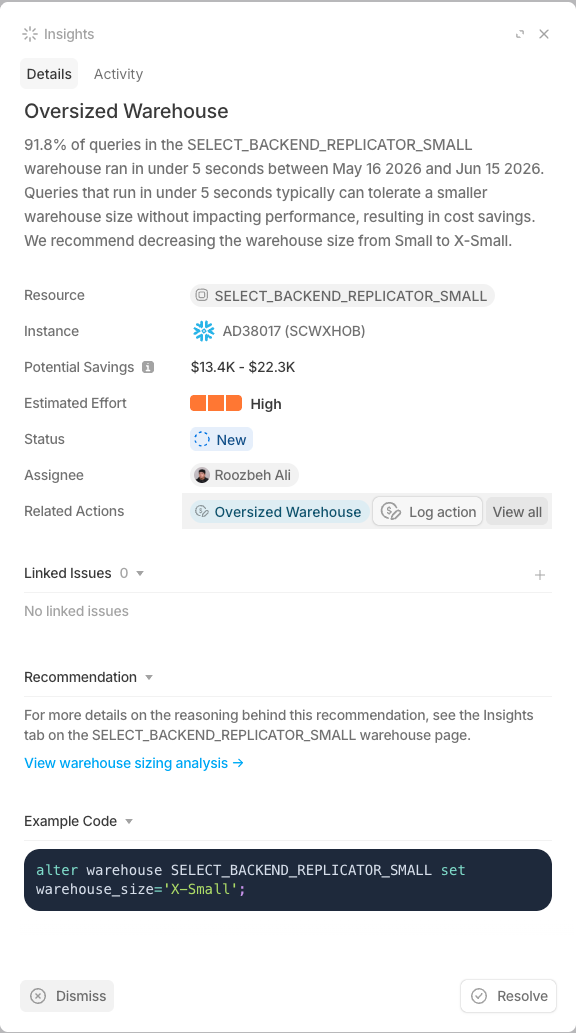
The Log Action modal opens with fields pre-filled from the insight:
- The resource is locked to the insight's resource.
- The title is pre-populated with the insight type.
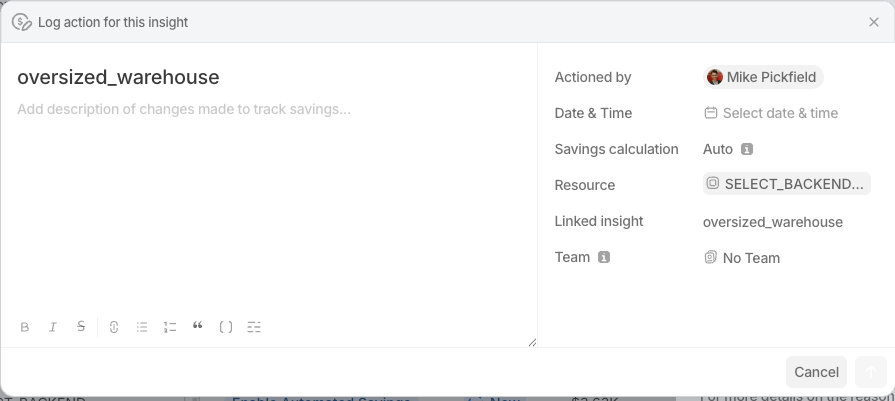
After logging, the insight shows its related actions.
Linking actions to Jira
Because actions mirror issue-tracking workflows, you can link a (resource-scoped) action to a Jira ticket. Open the action's detail drawer and use the Linked Issues section, or use Link Jira issue in the action's menu. This keeps optimization work tracked in SELECT connected to the engineering work tracked in your issue tracker.